Notifications
Updated 2026-09-01
How Botragon tells you on your phone that a conversation, a decision or a booking needs you — what you can choose, and the two reasons nothing arrives today.
What do Botragon push notifications do?
Botragon has one way of reaching you when you are not looking at the screen: a notification on your phone, from the Botragon app. Three kinds, and no others — a conversation the bot has handed to a person, a decision somebody is waiting on, and news about a booking.
Two plain facts before anything else, because they change what this page is worth to you today.
First, the app builds available now cannot finish registering a phone for notifications. You will be told so in the app's own words rather than left guessing: "You allowed notifications, but this device isn't registered to receive them yet, so none will arrive." That sentence is the product being honest, not a fault in your phone.
Second, sending is switched off across Botragon. Even a phone that registers correctly receives nothing until Botragon turns sending on. No screen announces the day that changes.
So read this page as the shape of the feature and the settings you will keep, rather than as something that will buzz tonight.
Hessa runs Lamsat Salon in Jeddah. She sells haircare products on Salla and takes appointments in the shop. Three staff work the inbox. Hessa is the admin; Reem is a supervisor, and the two of them approve booking requests. On a normal afternoon, three different things want a person: a customer asks something the bot cannot answer, someone requests a Thursday appointment that expires if nobody answers it, and a confirmed booking gets cancelled. Those are exactly the three switches on Hessa's phone. She does not open this screen often. She opens it once, decides which of the three are worth a buzz, and then wants to be left alone about the rest.
Two things this feature is not. There is no notification list, no bell, and no history — a notification arrives on your phone and that is all it ever is. And Notifications (web settings), the page of the same name in the browser, is a different screen entirely and does nothing yet. Section 3 covers it.
What do you need before notifications arrive?
| # | What must be true | Where you check it |
|---|---|---|
| 1 | You have the Botragon app installed on your phone and you are signed in. Everything you can set about notifications lives there. The browser cannot set any of it. | The phone |
| 2 | Your account belongs to a workspace. An account attached to no workspace is told "This account isn't part of a workspace, so there's nothing here to change." | The phone |
| 3 | Your phone has allowed notifications for Botragon. You are asked once, on the second screen of the first-run tour, and only once. | The phone |
| 4 | Your role can receive the category at all. See the table below. | Settings → Users & roles, in the browser |
| 5 | The switch for that category is on. Every switch starts on. | The app, Settings → Notifications |
| 6 | Botragon has switched sending on. Today it has not. | Nothing on any screen shows this |
No plan buys this. Notifications are not a Pro feature, they are not a Business feature, and there is no upgrade that turns them on.
Your role decides what you can ever be told about, before any switch:
| Your role | A conversation needs a human | Someone is waiting on your decision | Booking updates |
|---|---|---|---|
| Admin | Yes | Yes | Yes |
| Supervisor | Yes | Yes | Yes |
| Agent | Yes | No | No |
| Viewer | No | No | No |
A viewer's phone will show all three switches, all on. It is the one place the app misleads you: a viewer receives nothing, in any category, ever. Nothing on that screen says so.
Each person arms their own phone. You cannot turn notifications on for a member of your team, and you cannot change their switches. If Reem is not getting told about approvals, Reem has to open Reem's phone. There is no admin control over this anywhere in Botragon.
One more thing worth knowing before you rely on a handoff notification. Handoffs come from conversations, and conversations come from your channels. Meta has not yet approved Botragon, so WhatsApp, Instagram and Messenger cannot be connected through Botragon's own path — the setup checklist says exactly that, with no button beside it: "WhatsApp, Instagram and Messenger — awaiting platform approval". If you have connected by bringing your own Meta app, this does not affect you; see Connecting WhatsApp, Instagram and Messenger. If you have not, there is very little today that can hand a conversation over in the first place.
What are your options for notifications?
The three switches, in the app. Each one is yours alone, and each is a mute, not an unsubscribe. Turning one off stops your phone buzzing. It does not stop the thing happening, does not stop the conversation reaching your inbox or the request reaching your approvals list, and does not affect what your teammates are told.
| Switch | What changes if you leave it on | What changes if you turn it off |
|---|---|---|
| A conversation needs a human — "The bot handed over, a chat reopened, or a snoozed one woke up." | Your phone tells you when the bot gives up on a chat, when a closed chat is reopened, and when a snoozed one wakes. If the conversation already has an owner, only that person is told. If nobody owns it yet, the whole eligible team is told. | You find out when you next open the inbox. Nobody else's phone changes. |
| Someone is waiting on your decision — "A held booking request or an order from chat. These expire if nobody answers." | Your phone tells you when a booking request is held for your approval and when an order is placed from a chat. These are the ones with a clock on them. | The request still appears in Approvals and still expires if nobody answers it. This is the switch to think hardest about before turning off. |
| Booking updates — "Confirmed, cancelled, rescheduled, and reminders." | Your phone tells you when a booking is confirmed, cancelled, rescheduled, and when a reminder fires. | Booking news stops reaching your phone. It does not silence the customer waiting on your yes — that is the switch above, and the two are separate on purpose. |
Switches take effect the moment you tap them. There is no save button.
A row you may meet with a name in square brackets and no description underneath — something like [SOMETHING]. That is a category Botragon's server has added that your copy of the app does not yet have words for. The app shows it rather than hiding it, so that a switch you turned off is always a switch you can turn back on. It is not a bug and it does not need reporting.
Whether to allow notifications at all. On the second screen of the first-run tour you either press Turn on notifications or press Not now. Press Not now and you keep a completely usable app that never buzzes. Be careful with this one: the tour never comes back, so this is the only time the app will ever ask.
Which language your notifications arrive in. You do not set this directly, and it is not your phone's language — it is the language Botragon itself is set to on that phone, at the moment that phone registers. So Hessa's Arabic phone and her English tablet each get their own language from the same event. Nothing on any screen explains this.
And things you cannot choose, so you do not go hunting for them:
- Quiet hours does not apply to notifications. Quiet hours in the browser governs reminders sent to your customers, and nothing else. A booking reminder can wake you at 03:00 and quiet hours will not stop it. Neither screen mentions the other.
- There is no notification for a recovered cart, a finished campaign, or a product going out of stock. No switch hides them — the categories do not exist. Cart recovery is also running as a rehearsal: its reminders are marked "Planned — not sent" and no message leaves the system.
- There is no email or SMS fallback. If your phone is off, nothing reaches you by another route.
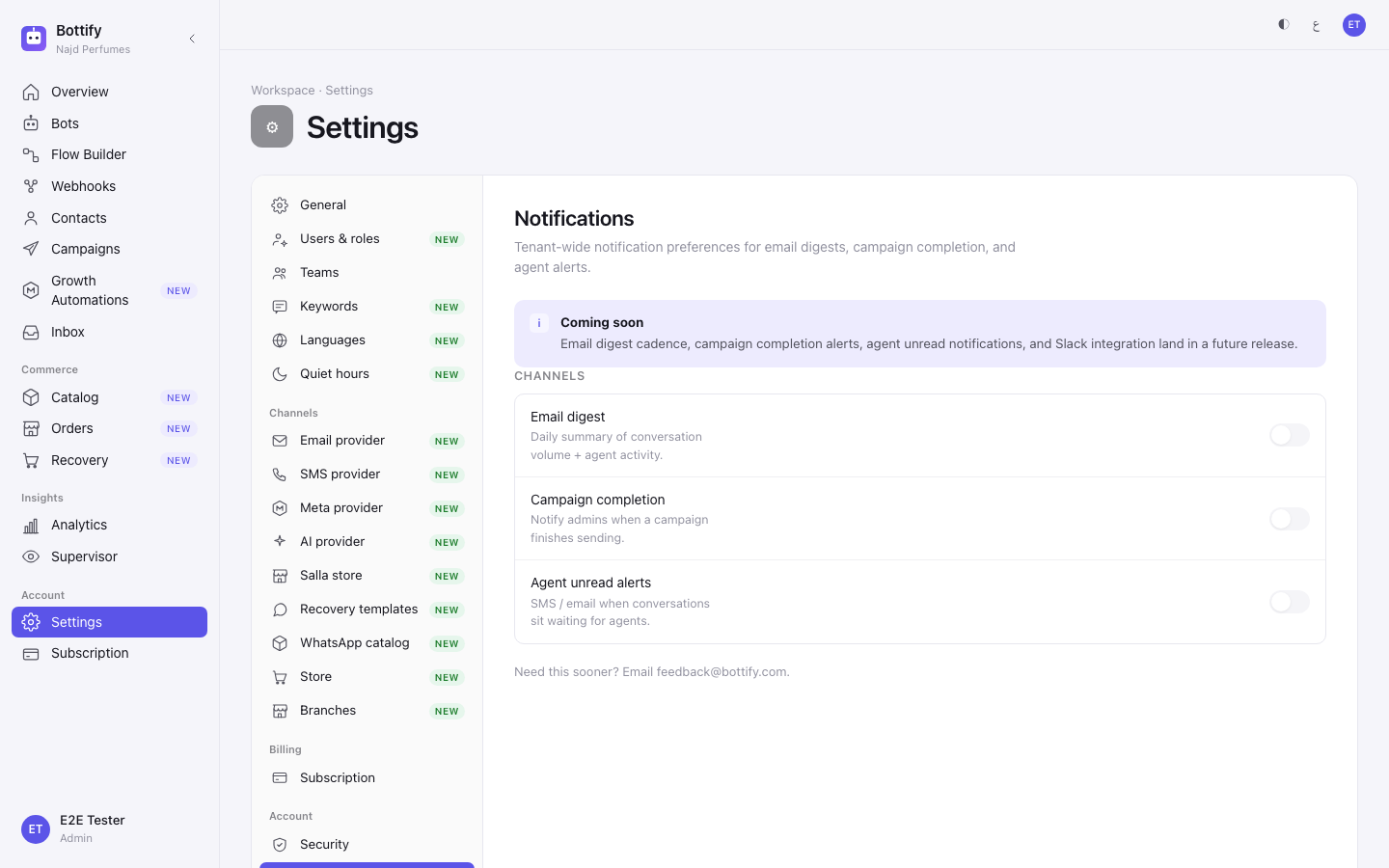
Notifications (web settings) — the page in the browser — changes nothing. Open Settings → Notifications in the browser and you get a page that says so itself, under the heading Coming soon: "Email digest cadence, campaign completion alerts, agent unread notifications, and Slack integration land in a future release." Under Channels there are three rows — Email digest, Campaign completion and Agent unread alerts — and all three controls are permanently switched off and cannot be pressed. Only an admin can open the page, which is worth saying only so you know the door is not stuck: there is nothing behind it yet. Its opening line describes workspace-wide notification settings; ignore that. The settings that exist are one person's own, on their own phone. The one thing on that page that works is the address at the bottom, after "Need this sooner? Email" — support@botragon.com.
How do you turn on push notifications?
Turn notifications on. You get one chance at this, during the first-run tour on your phone.
- Install the Botragon app on your phone and open it.
- Sign in with your Botragon email and password.
- On the first screen of the tour, press Continue.
- Read the screen headed Get told when someone needs you.
- Press Turn on notifications.
- In the dialog your phone puts up, choose to allow them — that dialog is your phone's, not Botragon's, so the wording is your phone's too.
- Wait for the status line under the body text to settle before you move on.
- Press Continue.
- On the last screen of the tour, press Done.
Stop hearing about one of the three. Any time, on your own phone.
- Open the Botragon app.
- Tap Settings in the bar at the bottom.
- Scroll to the Notifications section.
- Tap the switch beside the row you want to mute — say, Booking updates.
- Check that the switch stayed where you put it.
Step 5 is not fussiness. It is the only confirmation this screen gives you.
How do you know notifications are on?
On the tour, after you allow notifications, a line appears under the body text. Usually first, and usually for less than a second: "Permission granted. Checking this device can receive them…" — in the warning colour, because at that moment the app does not yet know whether your phone can actually receive anything.
Then, if it can, the line you want:
Notifications are on.
That sentence is the only proof, and it means more than it looks like it means. It is not "you pressed allow". It is "your phone is registered and Botragon can reach it". The app deliberately refuses to say it on permission alone, because permission and delivery are two different things and an earlier version of this screen said "on" to people who were never going to receive anything. If you see any other line, notifications are not on, whatever your phone's own settings say.
After changing a switch, nothing happens. There is no toast, no tick and no confirmation. The switch holds its new position, and that is the success signal. If it saves, it stays where you put it; if it fails, it snaps back and tells you why. Do not tap it twice waiting for a confirmation that is not coming.
Why am I not getting notifications?
"You allowed notifications, but this device isn't registered to receive them yet"
What you see — on the tour, in place of the success line: "You allowed notifications, but this device isn't registered to receive them yet, so none will arrive. The app will try again next time you open it."
Why — you did your part and the last step failed. The app cannot tell you which last step, so it deliberately does not guess: it might be that Botragon's phone-notification setup is not finished on this build, it might be that the request to Botragon did not go through, or you might simply be offline. What it will not do is claim notifications are on when they are not. This is the state a merchant lands in today, and it is the reason this page opens the way it does.
What to do — nothing on the phone will fix it. Open the app again later, and the app retries by itself each time. If you are on a poor connection, that alone may be it. Otherwise wait for Botragon to finish the setup; there is no setting on your side that changes this.
"Notifications stay off. You can turn them on later in Settings."
What you see — that exact sentence, after you decline your phone's permission dialog.
Why — you said no, which is a perfectly ordinary answer. But read the second half carefully, because it is wrong about Botragon. The app's Settings tab has no way to turn permission on. It has the three switches and nothing else — no permission control, no button, no status. And the tour that asked you never opens again once you have finished it.
What to do — "Settings" here can only mean your phone's own settings. Open your phone's Settings, find Notifications, find Botragon, and allow them there. Then open the Botragon app again so it can register. Do not go looking for this inside Botragon; it is not there.
"Notifications are blocked for this app in your device settings."
What you see — that sentence, and one link below it: Open device settings.
Why — your phone has stopped asking. On most modern phones a second refusal is final, and the permission dialog will never appear again. Botragon cannot re-ask, which is why there is no "try again" button here — a button that could never work would be worse than none.
What to do — press Open device settings. That drops you into your phone's own settings for Botragon. Allow notifications there, then come back and open the Botragon app so it can register. This is one tap plus your phone; there is no path through Botragon.
Three shorter ones you may meet on the switches themselves. If the section shows "Couldn't load your notification settings." with a Try again button, your phone lost its connection to Botragon — press Try again. If a switch snaps back to where it was and you see "That didn't save. Try again in a moment.", the change did not reach Botragon; the switch is showing you the truth rather than the position you wanted, which is why it moved back. And "This device can't receive notifications." means that phone cannot do notifications at all — an ordinary answer, not a fault, and there is nothing to fix on it.
And one that will surprise you. If you reset your password, every phone signed in to your account stops receiving notifications at once. That is deliberate: notifications carry customer names and booking details, so they must stop everywhere when your account's sessions are cleared. No screen warns you, and no screen tells you the fix. Open the Botragon app on each of your phones after a password reset, so each one registers again.