Inbox and conversations
Updated 2026-09-01
How your team takes over a conversation the bot cannot finish — accept it, answer the customer, and hand it back to the bot or close it out.
What does the Botragon inbox do?
Your bot answers most customers on its own. Sometimes it cannot. A customer is about to spend money and asks something the bot has no answer for, or is unhappy about an order that already exists. When that happens the conversation stops being the bot's and becomes your team's. The Inbox is where your team picks it up.
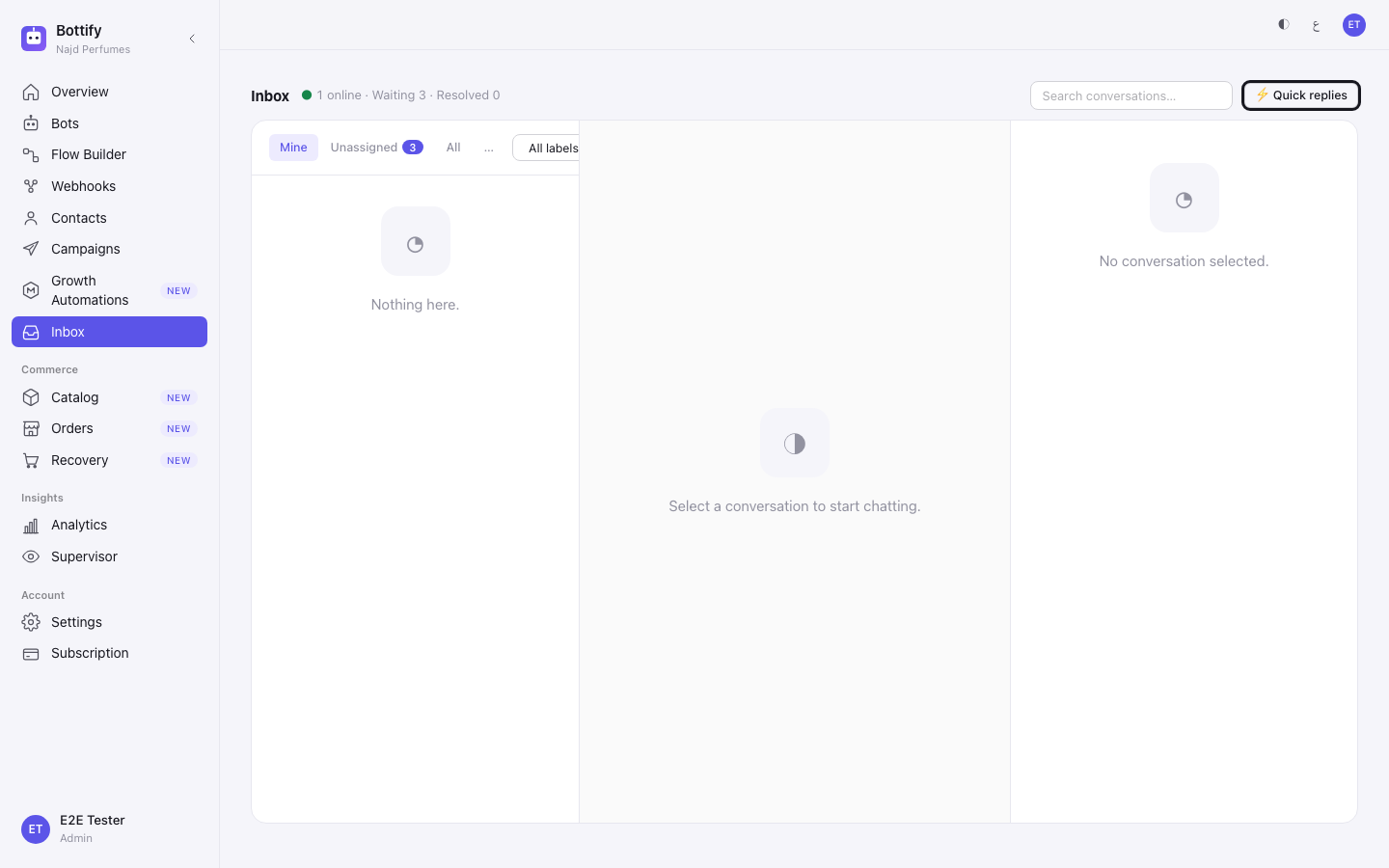
The screen is built around one loop. A conversation is waiting → someone takes it → they answer → it is closed out or given back to the bot. Every button on top of a conversation is a step in that loop.
A real morning at Atr Al-Riyadh. Noura Al-Otaibi owns a perfume shop in Riyadh with five staff. Her Salla store sells Royal Oud 12 ml at SAR 340 and White Musk 50 ml at SAR 120, and her WhatsApp bot handles order status and fragrance questions all day. A customer asks whether the 12 ml Royal Oud is the same concentration as the 50 ml bottle. The bot has no answer, so it hands the conversation over. It lands in the Unassigned queue. Sara Al-Qahtani, who works support, opens it, presses Accept, and sees in the details panel that this customer already has an open order for White Musk. She answers the concentration question in two lines, then presses Resolve and return to bot so the bot can finish taking the order. Total time: under a minute. The bot never had to guess.
Before you read further, one thing about launch. Conversations only exist if a channel is connected and a bot is receiving messages. WhatsApp, Instagram and Messenger cannot be connected through Botragon's own path yet — the onboarding journey says so in plain words: "WhatsApp, Instagram and Messenger — awaiting platform approval". Until that approval arrives, the way to a working inbox is to bring your own Meta app and connect it yourself — Connecting WhatsApp, Instagram and Messenger. Without a connected channel your inbox is not broken, it is empty: you will see "Nothing here." and nothing else.
What do you need before you can answer in the inbox?
A connected channel. A conversation reaches the inbox only when a customer writes to a bot on a channel you have connected. For most shops that means WhatsApp, which today needs your own Meta app. No connected channel means no conversations.
Nothing else has to be set up. You do not need a product catalog, and you do not need your Salla store connected, to use the inbox. The order details only appear when the conversation actually carries an order.
There is no plan requirement. The inbox is not sold as a plan feature, and there is no cap on how many people on your team can work in it.
Your role decides what you can do. Owners, supervisors and support staff can open the inbox. Viewers cannot open it at all — a viewer who follows a link to it is sent back to the dashboard without a message.
| You are | What you can do in the inbox |
|---|---|
| Owner (admin) | Everything, on anyone's conversation. Only you can create the label list and turn on Include snoozed |
| Supervisor | Everything on anyone's conversation, and you can reopen a resolved one. You cannot create labels |
| Support staff (agent) | Accept, answer, assign, snooze and resolve — but only on a conversation assigned to you |
| Viewer | Cannot open the inbox |
Two rules sit on top of all of that. Support staff can only act on a conversation that is assigned to them. Owners and supervisors can act on anyone's. And nobody — not even the owner — can change a conversation after it has been resolved.
Quiet hours do not touch this screen. If you have set quiet hours, they hold back abandoned-cart reminders only. A reply your team types is never delayed or held overnight.
What are your options in a conversation?
Everything here is optional. The inbox works with none of it switched on.
| Option | What changes if you use it |
|---|---|
| Mine / Unassigned / All tabs | Mine shows only what is assigned to you. Unassigned is the pool — this is where the bot's handoffs land, and where your team should be looking. All shows everything your role is allowed to see |
| 💤 Snoozed tab | Shows conversations you have put a timer on. Reachable through More views |
| ✓ Resolved tab | Shows closed conversations. Owners and supervisors only — support staff do not see this tab |
| Include snoozed checkbox | Owners only. Off: snoozed conversations disappear from Mine, Unassigned and All, and live only under 💤 Snoozed. On: they sit in the main list too. The product describes it as "Surface snoozed conversations inside the main inbox view (admin oversight)." |
| All labels filter | Narrows the queue to one label. Leave it alone and you see every conversation |
| Search conversations… | Free-text search across the queue |
| Priority | Four settings — Low, Normal, High and Urgent (the screen shows them shouted, as LOW, NORMAL, HIGH, URGENT). Priority is a note to your team; it does not reorder anything for the customer |
| Labels | Describe the conversation and let you filter the queue. Only the owner can create the list — until they do, the panel reads "No labels defined yet." |
| Contact tags | Describe the customer, not the conversation. Anyone on the team can add one, and it stays with that customer through every future conversation. Tags cannot be used to filter the queue |
| Internal note | Never sent to the customer. It is there for whoever takes the conversation next — "Visible to whoever takes over this conversation." |
| ⚡ Quick replies | Saved answers that appear as buttons above the reply box. Tapping one drops its text into the box — it does not send it. You still press Send. They are shared across your whole team, and anyone on the team can edit or delete any of them |
| Snooze | Puts a timer on a conversation you have already taken; it defaults to 30 minutes. It is not a way to park something you have not accepted |
| Flow picker on Resolve and return to bot | Leave it on "— Resume original flow —" and the bot carries on from where it stopped. Pick a flow instead and the bot restarts the customer on that flow |
Labels and tags are the pair people mix up. Labels go on the conversation, come from a list only the owner can build, and drive the queue filter. Tags go on the customer, can be typed by anyone, and outlive the conversation. Tag when you meant to label and your queue filter quietly returns nothing.
"Snoozed" looks like a state but is not one. A conversation has exactly three states: Waiting, Active and Resolved. Snoozing is a timer you put on a conversation you already own — it stays Active and stays yours. When the timer runs out the conversation goes back into the queue as Waiting, for anyone to pick up. It does not come back to you privately.
How do you answer a customer in the inbox?
This is Sara answering the Royal Oud question.
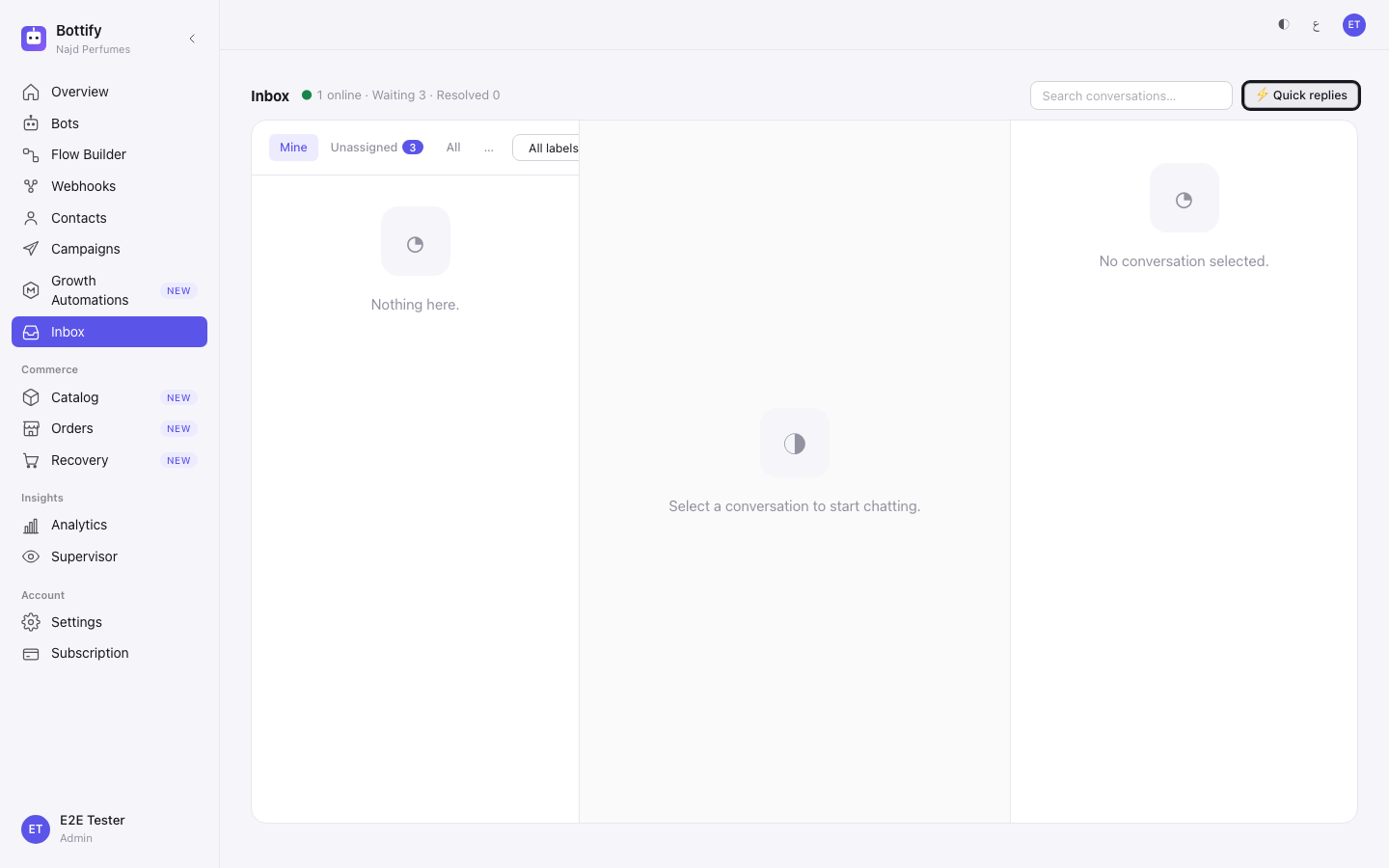
- Open Inbox from the sidebar.
- Click the Unassigned tab. Until you pick a conversation, the middle of the screen reads "Select a conversation to start chatting."
- Click the conversation you want.
- Press Accept.
- Read the details panel on the right — the order, the phone number, and any internal note the bot left.
- (Optional) Click one of your ⚡ Quick replies buttons to drop its text into the reply box.
- Type your answer in the box marked Reply to Reem… (the box carries your customer's name).
- Press Send.
- Press Resolve and return to bot.
- (Optional) Choose a flow in the Pick a flow (optional) list, or leave it on "— Resume original flow —".
- Press Resolve and return.
How do you know a conversation is handled?
The moment you press Accept, a toast reads Accepted, and the conversation's status in the details panel changes to Active with you named as the assigned agent — it shows as You or You (Sara Al-Qahtani). The Accept button is replaced by the working buttons: Assign, Snooze, Resolve and Resolve and return to bot.
When your reply sends, it appears in the thread straight away. While each action is in flight the screen tells you so: Assigning…, Returning…, Saving….
When you press Resolve and return, a toast reads Returned to bot and the conversation leaves your queue. Open it again from the ✓ Resolved tab and every action button is gone, replaced by one grey pill: "✓ Resolved · read-only". That pill is the product telling you the conversation is now frozen — for everyone, including the owner. If the customer needs more help, an owner or supervisor has to reopen it first.
Two other signals worth knowing. At the top of a handed-over conversation you will see "— 🤝 Handed to you · Mar 12, 9:14 AM —" with a "🤖 Bot · handoff" bubble, and one of two lines: "Bot conversation ended — order and context are in the details panel." when the bot passed its work along, or "Conversation handed off without bot context." when it had nothing to pass. And beside a payment method you may see (auto), meaning "The bot auto-selected the only available method" — that is why a customer sometimes appears to have chosen cash on delivery without being asked.
Why can't I reply to this conversation?
The customer went quiet too long
What you see: a message titled "Conversation outside the 7-day window", with the body "This conversation is outside the 7-day Human Agent window. Ask the customer to message you again to continue." — or, when Botragon can count the days, "Last customer message was 8 days ago. Ask them to send a new message to continue the conversation."
Why: on Instagram and Messenger you have 7 days from the customer's last message to reply. After that, Meta will not let you write first — the customer has to message you again. This does not apply to WhatsApp.
What to do: nothing you can force. Ask the customer through another route to send you a message, and the conversation opens up again. Two things to know in advance: there is no warning before this — you type the reply, press Send, and only then find out — and the day count is rounded up, so a conversation that is 7 days and 1 hour old is reported as 8 days. Treat 7 days as the real deadline, not a target. Snoozing does not pause the clock; it is measured from the customer's last message either way.
Someone else already took it
What you see: a toast titled Assign failed or Couldn't assign conversation, with the line "Conversation is already assigned to another agent".
Why: two people opened the same waiting conversation and the other one pressed Accept first. In a shared inbox this happens in the first week, every time.
What to do: let your colleague finish it. The message does not name them, but the details panel on that conversation shows the assigned agent. If it needs to be yours, an owner or supervisor can press Assign and move it across. A habit that prevents most of these: work from Unassigned, accept before you read, and use the Mine tab as your real to-do list.
The buttons are gone, or the conversation refuses your change
What you see: one of three lines, depending on what you tried — "Conversation is not ACTIVE (status=RESOLVED)" when you try to change a conversation that is closed; "Conversation is RESOLVED, not WAITING — accept applies to pooled conversations only" when you try to accept one; or "Conversation is RESOLVED — only WAITING or ACTIVE conversations can be assigned; reopen a RESOLVED one first" when you try to hand it to someone. On the internal note you will see "No internal note. Conversation is RESOLVED; note is read-only."
Why: a conversation only accepts changes while it is Active. A Waiting conversation has to be accepted first — this is also why you cannot snooze something you have not taken. A Resolved one is frozen so that the record of what happened cannot be edited after the fact.
What to do: if it is Waiting, press Accept and then act. If it is Resolved and the customer needs more, ask an owner or a supervisor to reopen it — that is the only way back, and the third message above says so. Reopening puts the conversation back in the queue as Waiting with no one assigned, and it lets your team chase the customer. It does not put the bot back in the middle of what it was doing.
One note on the wording. These lines are written for the person fixing the problem, not for a shop owner, and they name the state in capitals — RESOLVED, WAITING. Read the capitalised word as the conversation's state and the rest as the reason. If you are working in Arabic, expect the detail line under a translated title to arrive in English.